 FamKnit
Calendar & events
The month grid
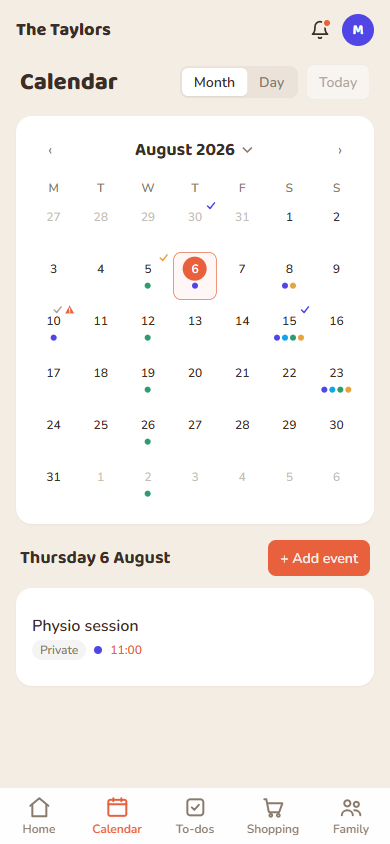
Each person's events show as a coloured dot matching their profile colour, so you can see at a glance who's doing what. Tap a day to see its full agenda below the grid.
A small check mark next to the date means someone has a to-do due that day too, coloured to match whoever it's assigned to, the same colour their events use. Unassigned to-dos get a plain grey check mark instead. It's just a hint, so tap the day to see the actual to-dos listed under that day's events.
Shared vs private
| Setting | Who can see it |
|---|---|
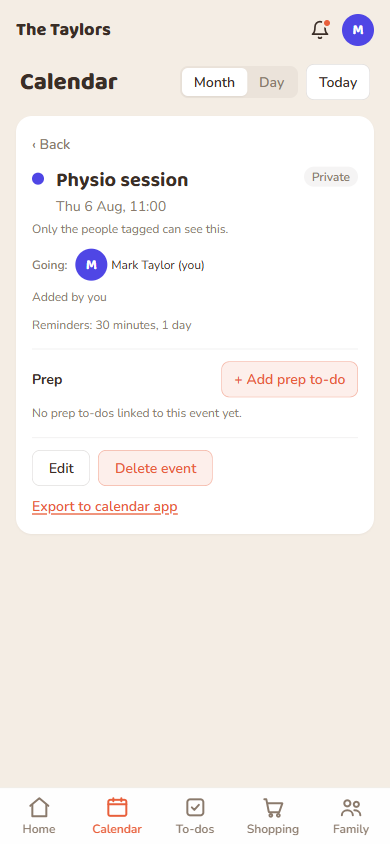
| Shared (default) | The whole family: everyone can see it on their calendar, read-only unless they created it. |
| Private | Only the people you tag. Nobody else in the family sees it exists at all. |
All-day vs timed
All-day events don't have a specific time and span whole dates, good for things like “away for the weekend” or a birthday. Timed events have a start and (optionally) an end time.
Location
Add a location and the event detail shows a “Get directions” link that opens it straight in Google Maps, handy for anyone in the family checking the event on their phone.
Recurring events
Set a pattern once and FamKnit creates every occurrence for you. The Repeats options are:
| Repeats | What you can also set |
|---|---|
| Never (default) | — |
| Daily | Ends: never, on a chosen date, or after a number of times. |
| Weekly | Which day(s) of the week it falls on, plus the same Ends choice. |
| Monthly | Same Ends choice; repeats on the same date each month. |
| Yearly | Same Ends choice; repeats on the same date each year. |
Clashes and warnings
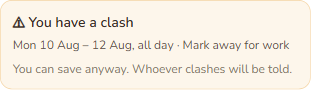
There are two different warnings, and they mean different things:
| Warning | When you see it | What it means |
|---|---|---|
| Amber | While creating or editing an event | Someone you're adding is already busy at that time. Never blocks saving, just a heads-up. |
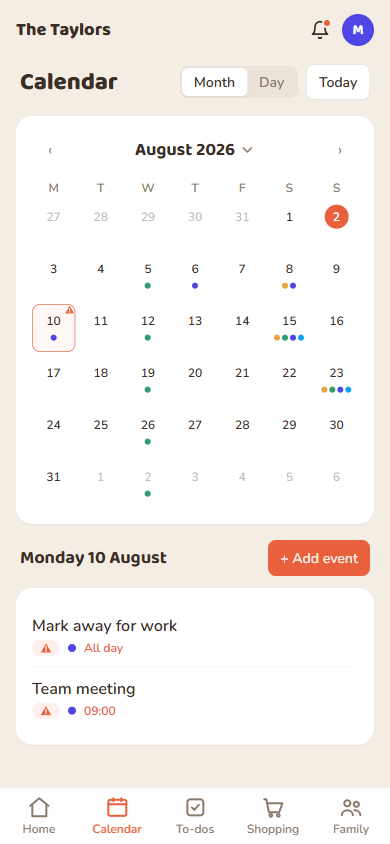
| Red mark | On an already-saved event, on the calendar grid and elsewhere | A genuine double-booking. You only see this for clashes involving you or a child you're responsible for reminders for. |
Busy vs Free (all-day events)
| Setting | Effect on clash-checking |
|---|---|
| Busy (default) | Blocks timed events on the same date(s) for whoever's tagged, Google Calendar style. |
| Free | Sits out of clash-checking entirely. Use for things that shouldn't block your day, like a birthday or bin day. |
Two all-day events never clash with each other either way, only an all-day event against a timed one.
Reminders
Set by whoever creates the event, and it applies to everyone tagged. You can pick more than one offset at once (e.g. both “30 minutes” and “1 day” before). Each tagged person gets a reminder at every offset chosen.
Prep to-dos
You can add a to-do straight from an event (useful for “pack swimming kit” before swim club), or link an existing to-do to an event from the to-do form. Deleting the event will ask what to do with any linked to-dos.
To-dos on the calendar
Whatever's due on a day shows in its own “To-dos” list underneath that day's events, whoever it's assigned to. This is the whole family's to-do list, not just yours, so you can see what everyone has on at a glance.
Tap a to-do to open it on the To-dos tab, where you can read its notes in full. You can mark anything complete from there, but only whoever added a to-do can change or delete it.
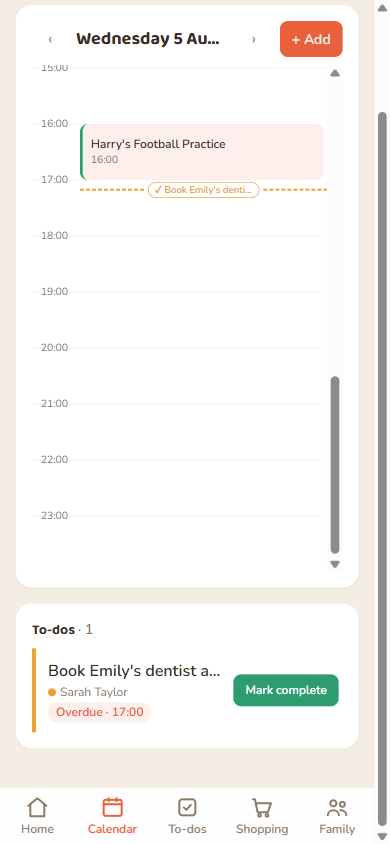
In Day view, a to-do with a specific time shows as a dashed line at that time on the hour grid, with its title in a small pill. It's deliberately different from an event block so the two are never confused. To-dos with just a date and no time only show in the list, not on the grid. The dashed line, the pill, and each row's left edge in the list below are all coloured the same way as the month grid's check marks: by who the to-do is assigned to.
Getting events into your phone's calendar app
| Option | Where to find it | What it does |
|---|---|---|
| Add to calendar | Inside an event's detail sheet | Downloads that one event as a file you can import anywhere. A snapshot. Won't update itself if the event changes later. |
| Subscribe to Family Calendar | Preferences → Connected apps and devices | A personal link you add once to Google/Apple/Outlook as a subscribed calendar. Updates itself on your calendar app's own schedule (usually every few hours) and only ever shows what you can already see in FamKnit. Nobody else's link shows the same thing as yours. |
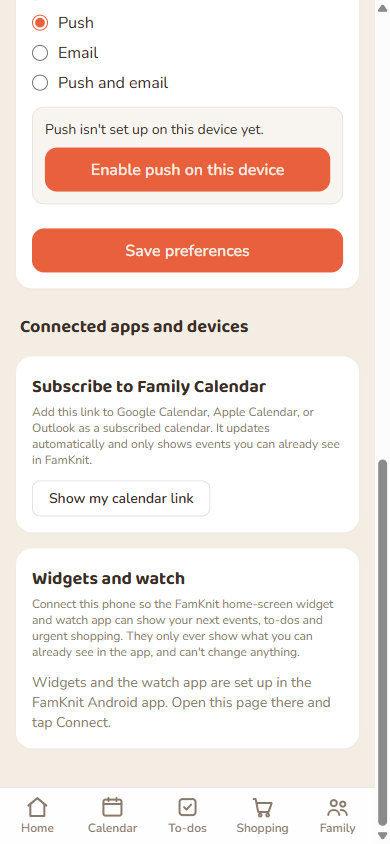
Step-by-step instructions, and what to do if you ever need to cancel the link, are in Connected apps and devices.
Bringing an existing calendar in
That's the opposite direction, with your events going out to another app. If you want to come the other way and copy what you already keep in Samsung Calendar, Google Calendar, Apple Calendar or Outlook into FamKnit, use the import button next to Today.
It's covered in Importing your calendar.
Finding an event
Can't remember which day something's on? The search icon in the top bar looks across your whole calendar, not just what's currently on screen, and can narrow to just events or filter by who's on it. See Finding things in Getting started.