 FamKnit
Connected apps and devices
What this is
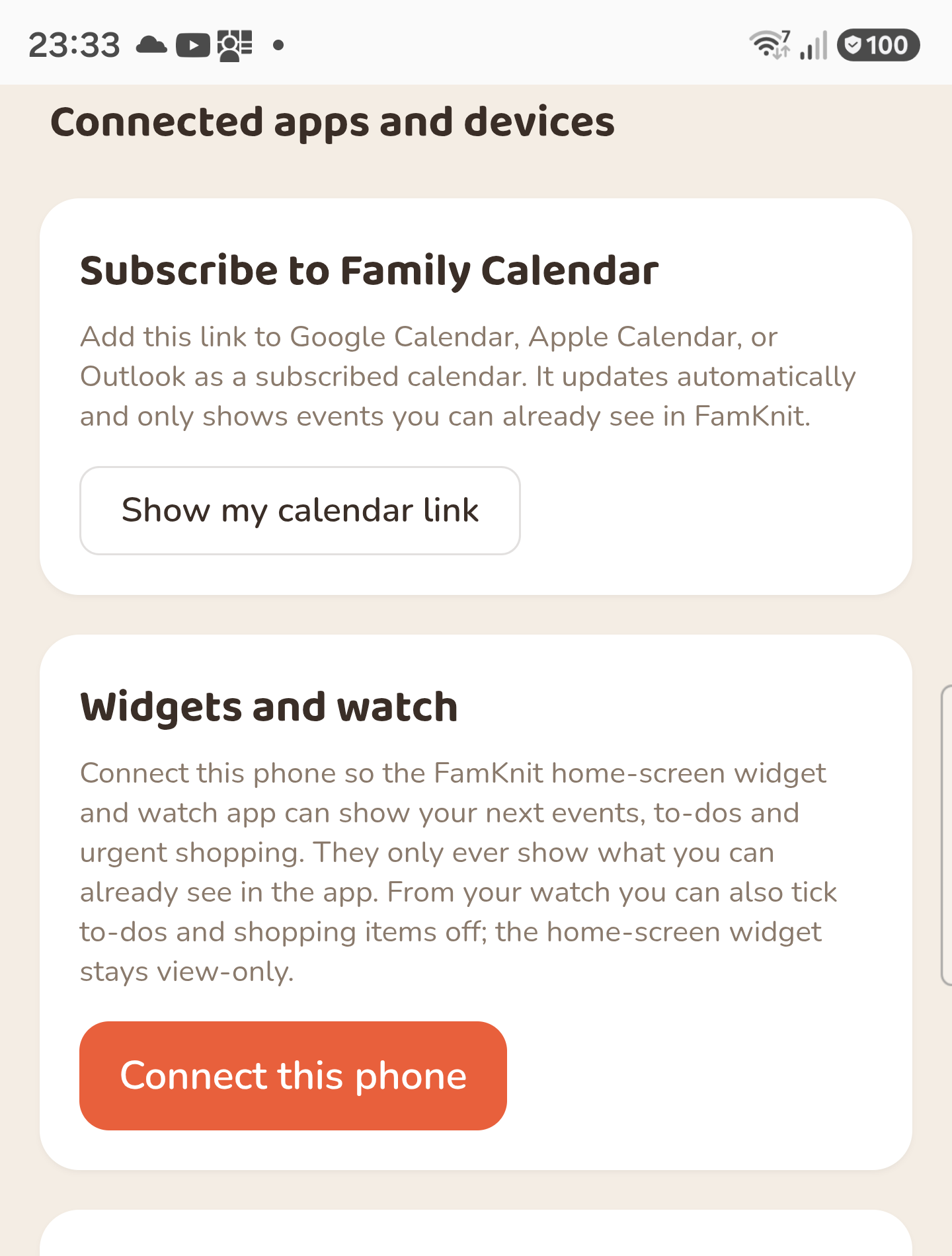
FamKnit can show your family's plans in places other than the app itself: in your normal calendar app, on your phone's home screen, and on your watch. You set all of them up in one place: Preferences → Connected apps and devices.
They all work the same way underneath. Each one gets a personal link or key that shows exactly what you can already see in FamKnit, never more. Two people in the same family who set up the same thing will see different plans, because they can see different plans in the app.
What you can and can't do from each one
The subscribed calendar and the home-screen widget are both read-only: you can't tick off a to-do, mark shopping as bought, or edit an event from either one. Editing still has to happen in FamKnit itself.
The watch app is the one exception: tap the circle on a to-do or shopping row to check it off, right from your wrist. It works even if FamKnit isn't open on your phone, since your watch talks to your phone in the background. It can't do anything beyond that: events stay tap-to-view, and there's no way to add, edit, or un-check something from the watch.
| Shows | Updates | Can change things? | |
|---|---|---|---|
| Subscribed calendar | Your events, in Google/Apple/Outlook alongside everything else in your life | On your calendar app's own schedule, usually every few hours | No |
| Home-screen widget | Your next events, to-dos and shopping, on your Android home screen | Roughly every half hour, when you leave the app, and when you tap Refresh | No |
| Watch app | The same three lists, on a paired watch | Every time you open it on the watch | Yes — tick to-dos and shopping items off |
Subscribe to Family Calendar
This puts your FamKnit events into the calendar app you already use, so they sit next to work meetings and everything else instead of living in a separate app you have to remember to check.
- Open Preferences from your avatar menu.
- Under Connected apps and devices, tap Show my calendar link, then Copy.
- In Google Calendar, Apple Calendar, or Outlook, look for Add calendar → From URL (sometimes called Subscribe from web) and paste the link.
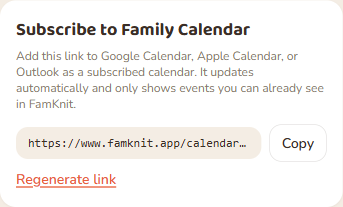
The link is personal to you and it isn't guessable, but anyone who gets it can see your events without signing in. Treat it like a password: don't post it anywhere or share it with someone you wouldn't give your account to.
Widgets and watch
These need the FamKnit Android app. There's nothing to connect in a web browser, so the card will tell you to open the page in the app instead. Tap Connect this phone once, and the widget and the watch app can both start showing your plans.
Adding the widget: press and hold an empty spot on your home screen, choose Widgets, find FamKnit, and drag it where you want it. It has Events, To-dos and Shopping tabs. Tap one to switch. Tapping a row opens FamKnit at that item, and dragging the widget bigger gives you more rows.
The watch app installs on a paired watch and shows a summary screen: your next event, how many to-dos, how much shopping, with a tap through to each full list. Swipe right to go back. It has no sign-in of its own: it only ever shows what your phone has already fetched, so if your phone isn't connected, the watch has nothing to show.
On the To-dos and Shopping lists, tap the circle beside an item to check it off. It works even with FamKnit closed on your phone, as long as your watch and phone are within Bluetooth range of each other. A checked item disappears from the watch within a few seconds, and from the app and the home-screen widget too.
Show on watch, from Shopping mode
Opening the watch app yourself is one way to see your lists there. There's a second, more direct one: a small ⌚ button appears next to the screen-lock toggle whenever you open Shopping mode with a FamKnit watch nearby (see Shopping list). Tapping it actively brings the watch to its own Shopping screen for you, rather than waiting for you to open it yourself, and keeps the watch's display lit for as long as you're both there.
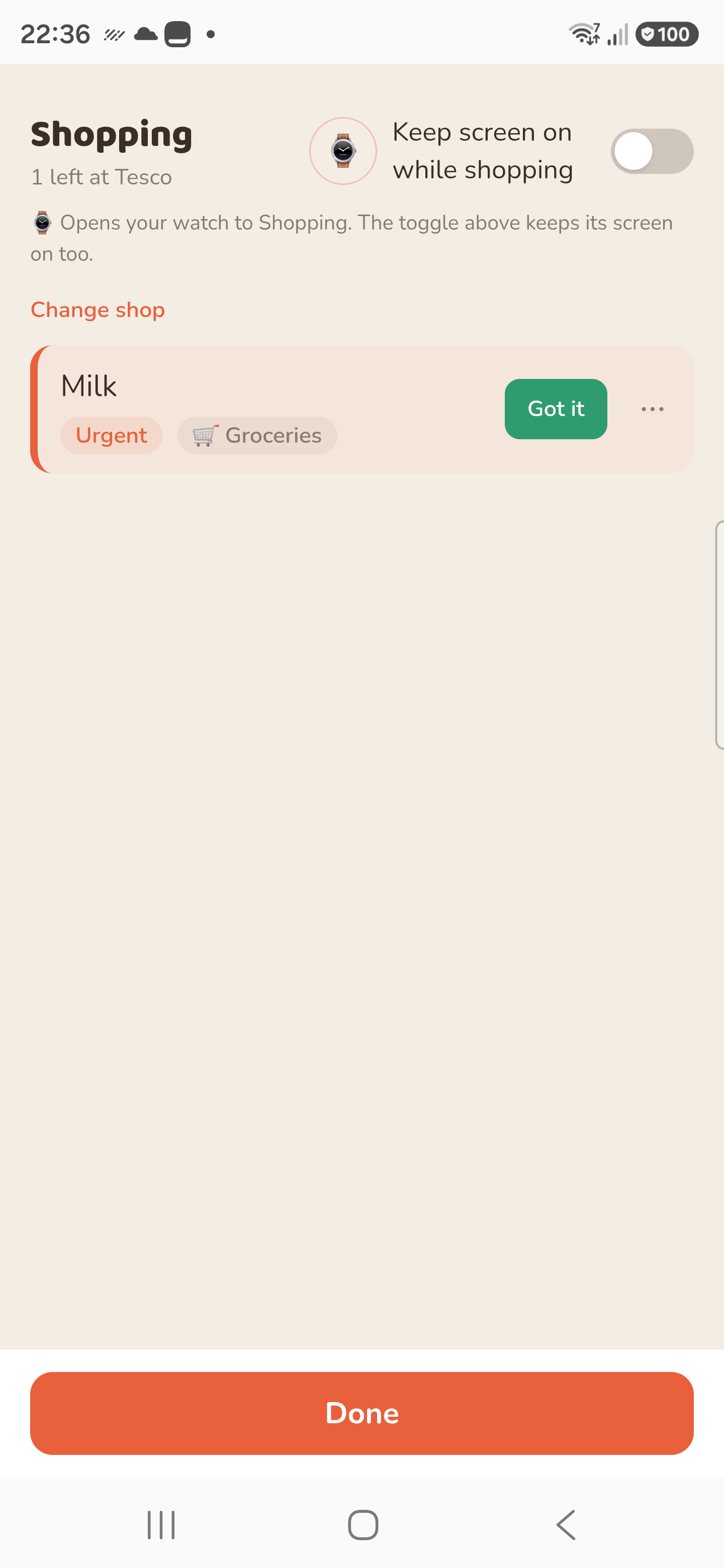
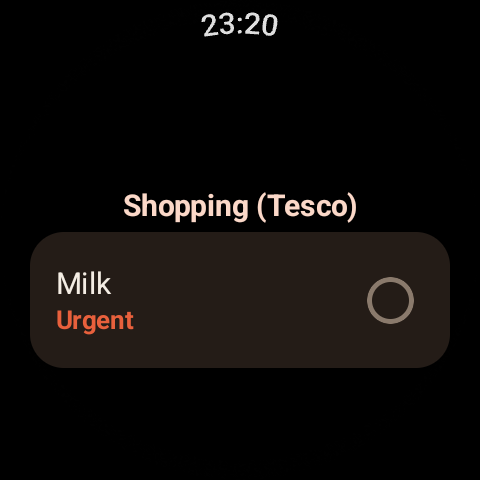
It only ever appears if FamKnit can actually reach a watch with the app installed, so there's nothing to tap if you don't have one paired. If the watch goes out of range after you tap it, you'll see “Couldn't reach your watch” rather than nothing happening.
The watch follows whichever shop you've picked in Shopping mode, live: its title changes to say which one (“Shopping (Tesco)”), and switching shops on your phone updates an already-open watch screen on its own, with no need to tap the watch icon again. Leave Shopping mode, or pick All shops, and it goes back to showing everything.
Why the widget sometimes lags
The widget can't stay permanently connected (that would drain your battery), so it checks for new plans roughly every half hour. Android stretches that further when your phone is idle or in battery saver, which is the right trade for a family organiser.
- Changes you make yourself appear as soon as you leave the app.
- Changes other people make wait for the next check, or until you tap Refresh on the widget.
- If it hasn't managed to check for a while, the widget says Tap to refresh rather than quietly showing you yesterday's plans.
Reminders are a different thing entirely and are not affected by any of this. Those arrive as notifications, on time, whatever the widget happens to be showing.
Turning something off, or starting over
There are three different “undo” actions here and they do noticeably different things, so it's worth knowing which one you want.
| Action | What it does | Use it when |
|---|---|---|
| Disconnect this phone | This phone's widget and watch go blank and forget what they'd cached. Nothing else changes, and you can connect again any time. | You're selling or handing on the phone, or you just don't want your plans on the home screen any more. |
| Reset the key | Every device you've connected stops showing your data, including this one, until it reconnects, which it does immediately. | You think someone else has your phone or watch. |
| Regenerate link | Your old calendar link stops working everywhere. Any calendar app you'd added it to goes quiet until you paste the new one in. | You shared the link by mistake, or it ended up somewhere public. |
What these never show
Everything you've kept private stays private. A private event or a private to-do only reaches these surfaces if you're one of the people it was shared with in the first place, the same rule the app itself follows. Someone else's calendar link or widget will never show them something they couldn't already open in FamKnit.
The subscribed calendar also deliberately leaves some things behind: it sends the title, time, description and location, and nothing about who's going, whether an event was private, or how you've set its reminders.