 FamKnit
Getting started
Signing up
You can create a FamKnit account two ways:
| Method | How it works |
|---|---|
| Email + password | Enter your email and a password (at least 8 characters, with a mix of upper/lowercase, a number, and a symbol). You'll get an 8-digit code by email to verify it's really you. |
| Continue with Google | One tap, no password to remember. If your Google account's email matches an existing password account, FamKnit links them into one account automatically. You never end up with two. |
Forgot your password?
This one works differently on purpose: instead of a code, we email you a reset link. It's a rarer action than signing up, so a link is simpler than adding a second code screen just for this.
Creating or joining a family
Once you're signed in, you'll either start a new family or join an existing one:
- Starting fresh? Create a family, give it a name, and you become its first admin.
- Joining someone else's family? Ask them for the invite code from their Family tab, and enter it when you sign up or from onboarding. (An admin can also send you a personal invite link by email instead. See Your family.)
- Either way, pick a colour for yourself. Every person in a family has a different colour, so events and to-dos are easy to tell apart at a glance. If your first choice is already taken, FamKnit picks the next free one for you.
Finding your way around
Once you're in a family, everything lives in two places:
- The bottom tab bar: Home, Calendar, To-dos, Shopping, Family. This is the content of the app.
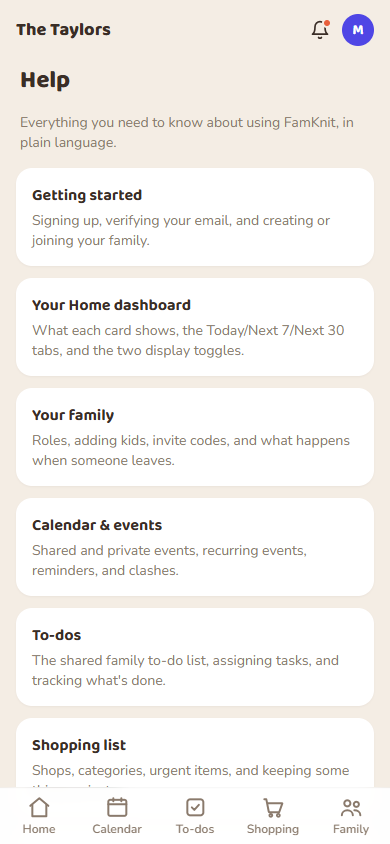
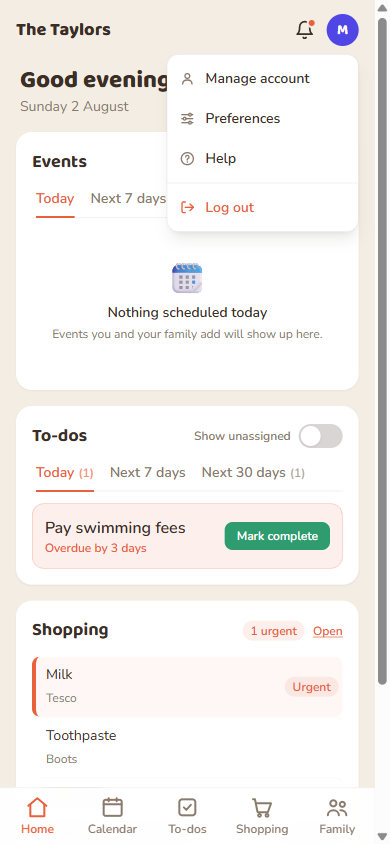
- Your avatar, top right: Manage account, Preferences, Help, and Log out. This is about you and how the app behaves, not the family's shared content.
Finding things
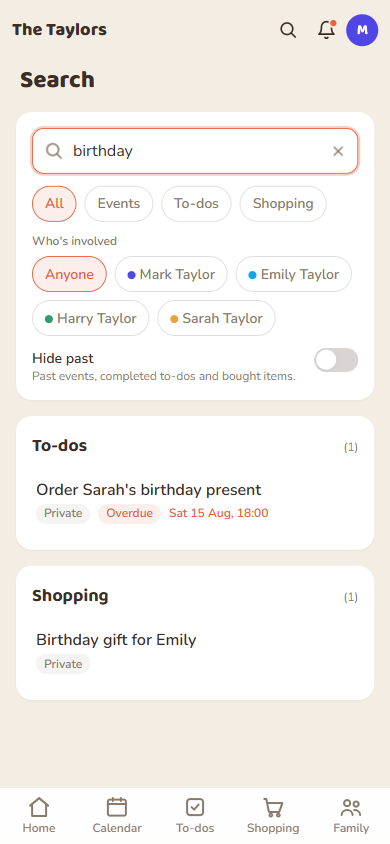
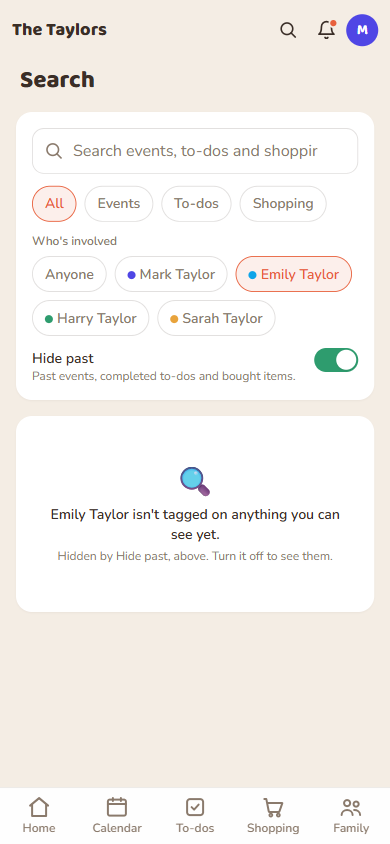
The magnifying glass in the top bar, next to the notification bell, searches everything at once: events, to-dos and shopping items together. Type at least two letters and results appear grouped, so you can see straight away whether “gift” is on your to-do list, your shopping list, or both, before you tap into either one.
Tap All, Events, To-dos or Shopping above the results to narrow it down to just one kind of thing.
Underneath, pick a family member, kids included, to see only what involves them, with or without typing anything. That's a quick way to answer something like “what has Harry got coming up” without hunting through the Calendar, To-dos and Shopping tabs one at a time.
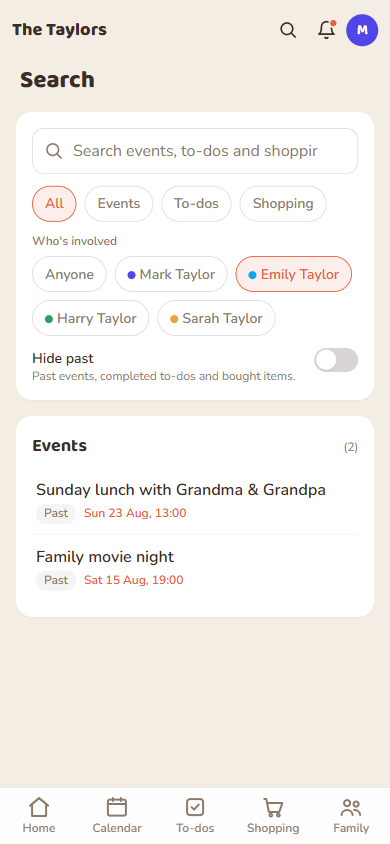
Switch on Hide past, below the person picker, to leave out anything that's already happened: finished events, to-dos already ticked off, and items already bought. It stays off until you turn it on, and remembers your choice the next time you search.
Display preferences: your accent colour, and light or dark
Preferences → Display preferences is where FamKnit's look is up to you, in two separate ways: which colour it's built around, and whether it's light or dark.
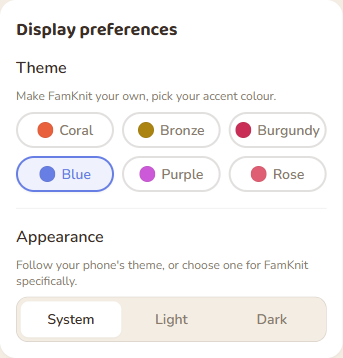
Theme picks your accent colour: Coral (the default), Bronze, Burgundy, Blue, Purple, or Rose. It's purely a look, not a setting anyone else in your family sees. Tap a swatch and the whole app re-colours immediately, no reload needed.
Appearance, underneath it, is the separate light/dark choice: System (the default, follows your phone or browser's own light/dark setting), Light, or Dark. Your accent colour looks right in either.
Both choices are saved to your account, not just this device, so they carry over if you sign in on your phone and your desktop browser alike.
This help guide
You're looking at it, reachable any time from Help in your avatar menu.