 FamKnit
To-dos
One shared list
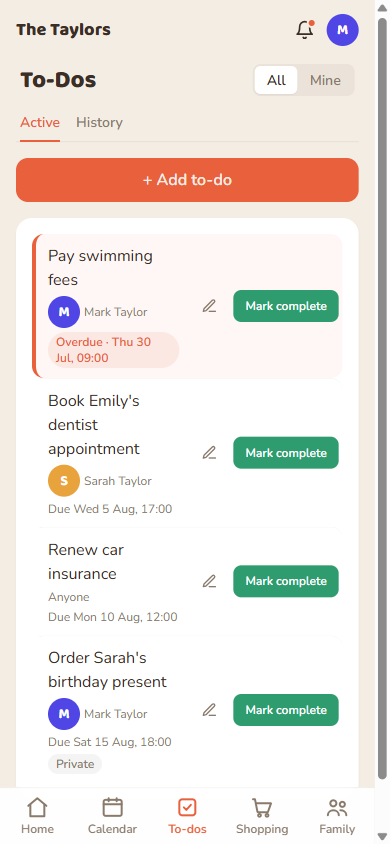
Your family has a single shared to-do list. You can assign a task to a specific person, or leave it unassigned so anyone can pick it up. Unassigned tasks notify everyone shared on the list.
| Filter | What it shows |
|---|---|
| all | Every to-do on the list, assigned to anyone. |
| mine | Only to-dos assigned to you. |
Due dates
Every to-do needs a due date: either a specific time, or just a date for something with no fixed time (switch on “All day”). This isn't optional: it's what lets FamKnit remind you at the right moment, and lets History correctly show whether something was done on time.
| Setting | Effect |
|---|---|
| All day off (default) | Pick an exact date and time; reminders count down to that moment. |
| All day on | Pick just a date; reminders use your all-day reminder time from Preferences instead. |
Repeating to-dos
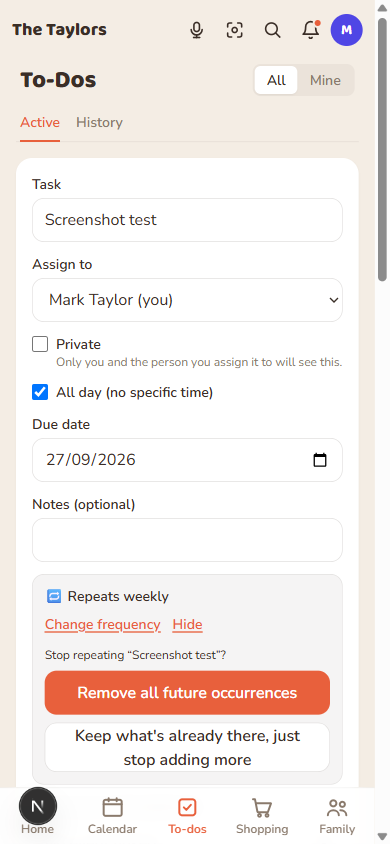
Turn on Repeat when adding a to-do (Daily, Weekly, Monthly, or a custom interval) and FamKnit creates enough of them at once to cover about the next 30 days, not just one. A weekly repeat, for example, adds five or six to-dos straight away: check your list and next week's, and the week after's, are already waiting for you. Completing one, or deleting one you don't need, is what keeps that lookahead going over time, but since several are usually already there, ticking one off won't always add a new one right away. Each occurrence is its own real to-do: it shows up in search, gets its own reminders, and its own place in History once it's done, exactly like anything else on the list.
Repeat can only be switched on when you first add a to-do, not added afterward. Once it's repeating, open any occurrence to change how often it repeats (this only affects to-dos not yet generated) or to stop it altogether, either removing every occurrence still to come or just leaving what's already there and not adding any more.
Who can change what
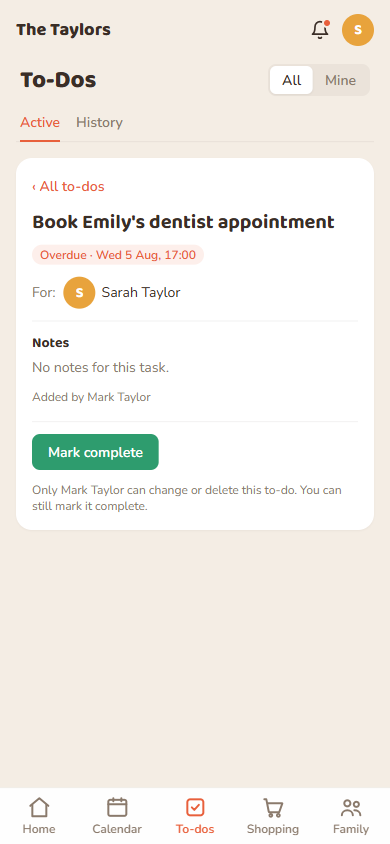
Anyone in the family can mark any to-do complete, or undo it. That's deliberate: a task shouldn't get stuck just because whoever added it isn't around.
Changing or deleting a to-do is different, and only the person who added it can do that. If someone else added it, you won't see an edit button, and opening it tells you who to ask. Being the person it's assigned to doesn't change this.
Private to-dos
| Setting | Who sees it |
|---|---|
| Off (default) | Everyone shared on the family to-do list. |
| On | Only you and whoever it's assigned to. A private to-do always needs a real assignee for exactly this reason. You can't leave it unassigned. |
Active vs History
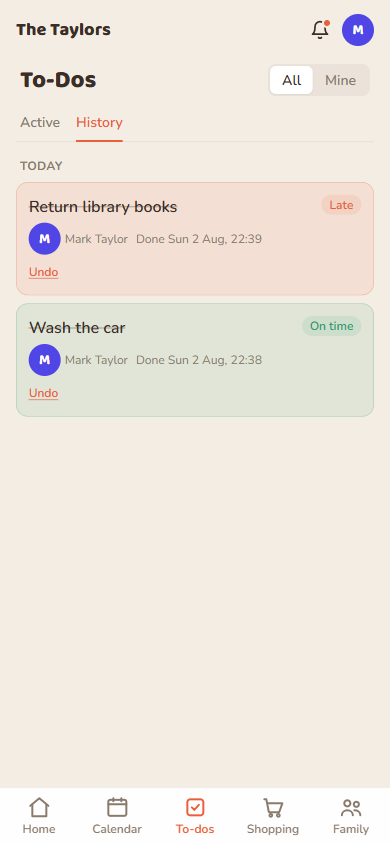
Active shows everything still to do, overdue items first. History shows what's been completed: green if it was done by its due date, coral if it was late, grouped into Today, Last 7 days, Last 30 days, and Older. You can undo a completion from History if it was ticked off by mistake.
On the calendar too
Whatever's due on a given day also shows up on the Calendar, underneath that day's events, with a small check mark on the month grid hinting which days have something due.
Finding a to-do
The search icon in the top bar covers your whole to-do list, done and outstanding, not just what's on screen. See Finding things in Getting started.