 FamKnit
Shopping list
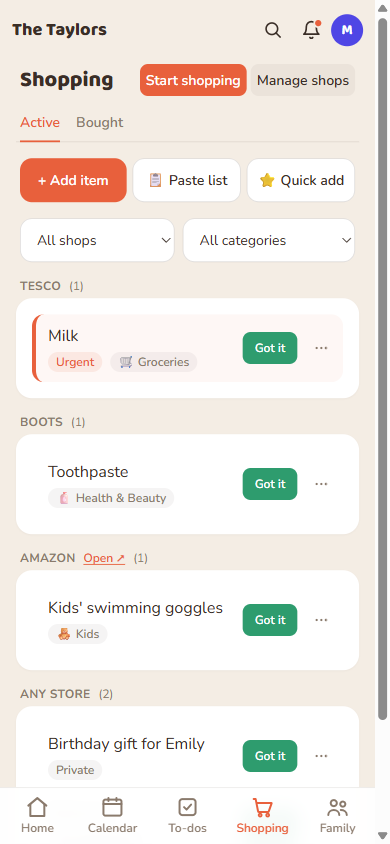
One shared list, grouped by shop
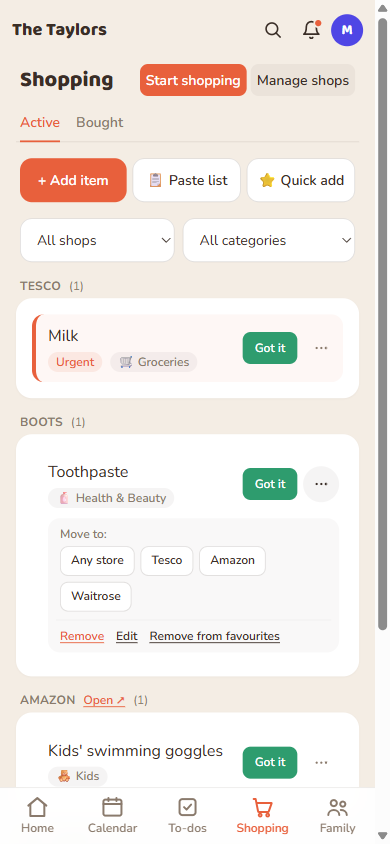
Items are grouped by which shop they belong to, with an “Any store” group for things that don't matter where you get them. Admins manage the family's list of shops from “Manage shops”.
| Shop type | What's different |
|---|---|
| Physical store | Just a name, e.g. Tesco, Boots. |
| Online shop | Add a website link when you create it (e.g. https://www.amazon.co.uk). The group heading then shows an “Open ↗” link straight to the site. |
Adding items
| Way to add | How it works |
|---|---|
| + Add item | The full form: name, quantity, category, shop, urgent, and private, one item at a time. The form stays open so you can add several in a row. |
| 📋 Paste list | Paste in a list of items (e.g. copied from a text message or a recipe), one per line, and FamKnit adds them all at once. Each still gets a category suggestion automatically. |
| ⭐ Quick add | For things you buy again and again, skip the form entirely. See “Quick add” below. |
Paste list understands shops two ways. Put a shop at the end of a line (Milk 2 Asda), or put a shop's name on a line of its own and everything below it goes to that shop, until the next shop name appears:
- Asda, Milk, Tomato, Sainsbury's, Onion, Carrot (one per line) adds milk and tomato under Asda, and onion and carrot under Sainsbury's.
- Shop names are matched without worrying about capital letters, and only against shops your family has already added.
- A shop written on an item's own line wins over the shop name above it.
Quick add: your regulars, one tap away
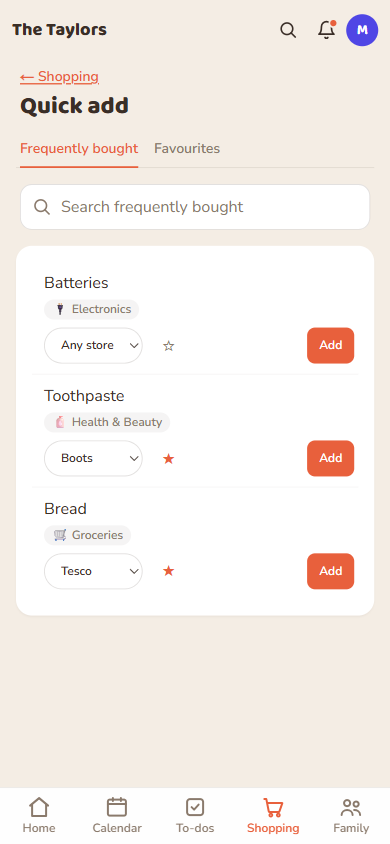
Tap ⭐ Quick add next to the add buttons for a screen built for the things your family buys again and again, milk, bread, whatever it is, so you don't have to go through the full form every time.
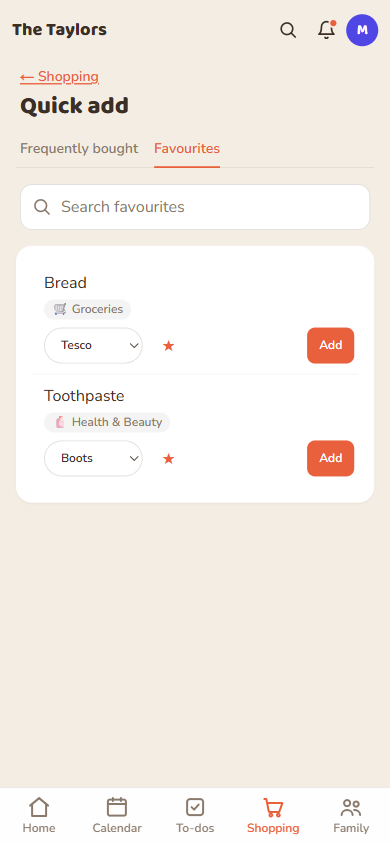
| Tab | What's in it |
|---|---|
| Frequently bought | Ranked by how often your family actually ticks each item off, most first. The shop shown is the one you buy it at most, tap it to switch to another shop before adding, if your family buys it in more than one place, both are counted. |
| Favourites | Items anyone in the family has hand-picked to keep here, whether or not they're bought often. Star an item from the Frequently bought tab, from the add form, or from an item's ⋯ menu to add it. |
A row already on your active list shows On your list instead of an Add button, so you can't add the same thing twice by mistake.
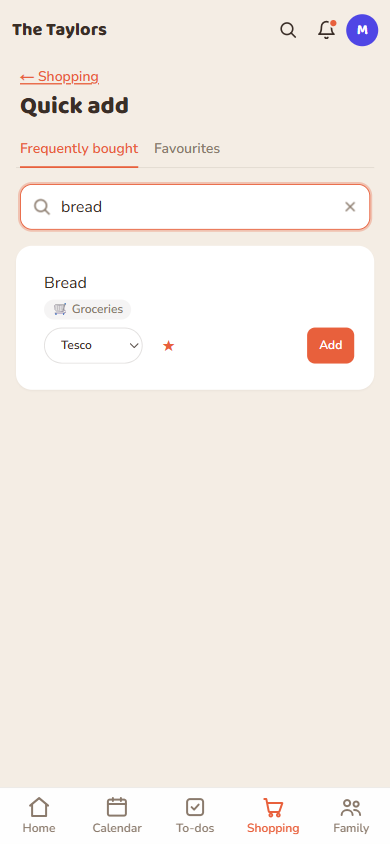
Type in the search box under either tab to jump straight to an item instead of scrolling. It filters that tab only, matching the item's name, category or shop, and narrows the list as you type, no need to press enter.
Urgent and private
| Toggle | Off (default) | On |
|---|---|---|
| Urgent | Sits in normal position within its shop group. | Jumps to the top of its group so it's not missed. |
| Private | Visible to everyone shared on the list. | Visible only to you and whoever you pick in the “Who else can see it” chip list that appears. |
An item's “More actions” menu
| Action | What it does |
|---|---|
| Move to | Sends the item to a different shop (or to Any store), offered to any member shared on the list, not just whoever added it. |
| Remove | Removes the item outright, rather than marking it bought. |
| Edit | Change the item's details. Only offered to whoever added it. |
| Add to favourites / Remove from favourites | Stars or unstars the item, so it does or doesn't show up on Quick add's Favourites tab. |
Shopping mode: a focused view for while you're in the shop
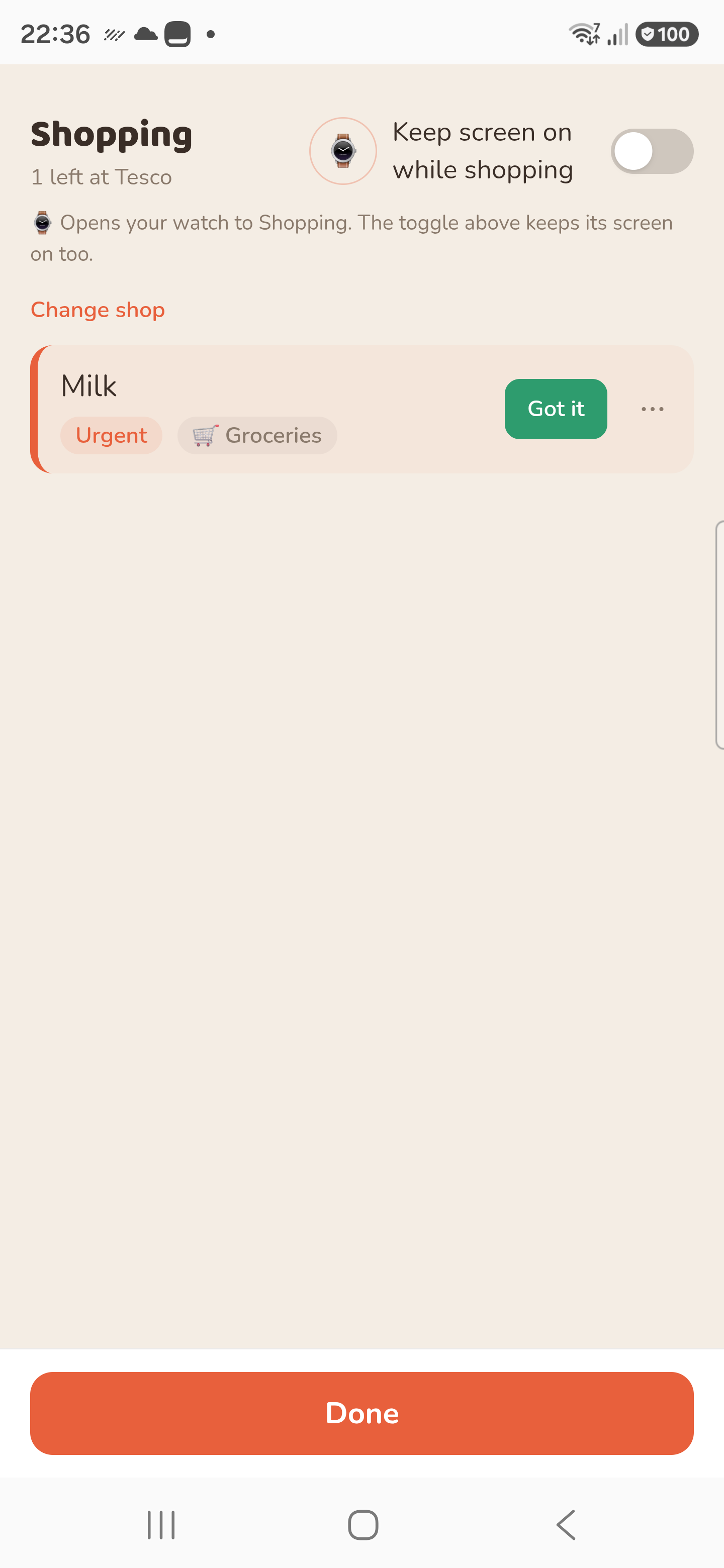
Tap Start shopping (it only appears when there's something to buy) for a full-screen checklist with the filters, tabs and add form stripped away, just the items left to get. If your family uses more than one shop, you're asked which one first, or you can shop the whole list at once.
Each row still has the same Got it button and ⋯ menu (Move to / Remove) as the main list, just bigger and easier to tap one-handed. Ticking something off shows a brief “Bought: …” strip with an Undo, for the obvious mis-tap.
| Header control | What it does |
|---|---|
| Screen toggle | Keeps your phone's screen from locking while you shop. Off by default, since it's a real (if small) battery cost — turn it on for the length of a shop, and it releases itself the moment you leave this screen. |
| ⌚ watch icon | Only appears if FamKnit finds a paired watch with the app on it. Tap it to bring the watch straight to its own Shopping screen and keep its display lit too, for as long as you're both here. See Connected apps and devices. |
Done at the bottom takes you back to the normal Shopping list at any point, whatever's left unchecked.
Working offline
Signal drops in the middle of an aisle more often than not. Shopping mode keeps working anyway: keep tapping Got it, Move to, and Removeexactly as normal, and a banner tells you how many changes are still waiting to reach the server.
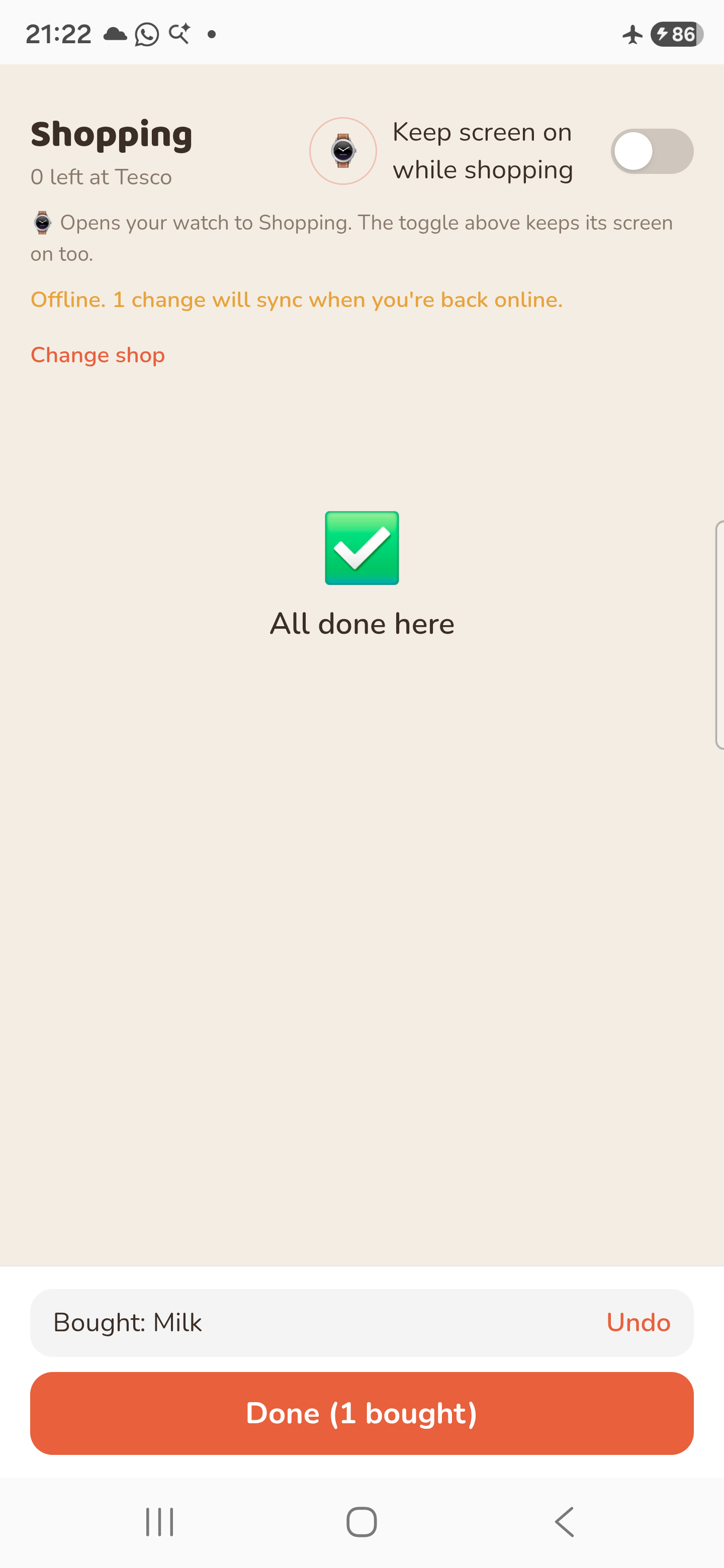
Nothing is lost while you wait. The moment your phone reconnects, everything queued sends itself, whether that happens while you're still in the shop, walking back to the car, or your phone was closed the whole time in between. You don't need to keep the app open or do anything yourself.
Active vs Bought
Tapping “Got it” marks an item bought and moves it to the Bought tab rather than deleting it, so you can see what's recently been picked up.
Filtering
Use the shop and category dropdowns above the list to narrow it down, handy when you're actually stood in one shop and only want to see what's needed there.
Smart categories
Finding an item
Already bought it, or can't remember which shop you put it on? The search icon in the top bar covers your whole list, bought items included. See Finding things in Getting started.