 FamKnit
Smart Scan & voice
What this is for
Smart Scan reads a photo of a letter, a shopping list or a note, and turns it into events, to-dos and shopping items ready for you to add. You can also paste text straight in, or just say what you want out loud instead of typing or scanning anything at all.
It never adds anything on its own. Every time, you land on a review screen first, where you can check, edit or skip each thing it found before anything is saved.
Turning it on
Smart Scan has to be switched on for your family before anyone in it can use it. This isn't something a family can turn on for itself yet, so if you don't see it at all, ask whoever manages FamKnit for your family.
Once it's on for your family, each member decides for themselves in Preferences → AI features: a Smart Scan switch for photos, pasted text and typed notes, and a separate Voice notes switch underneath it for speaking instead. Voice only appears once Smart Scan itself is on, since a spoken note goes through the exact same reading step a photo does.
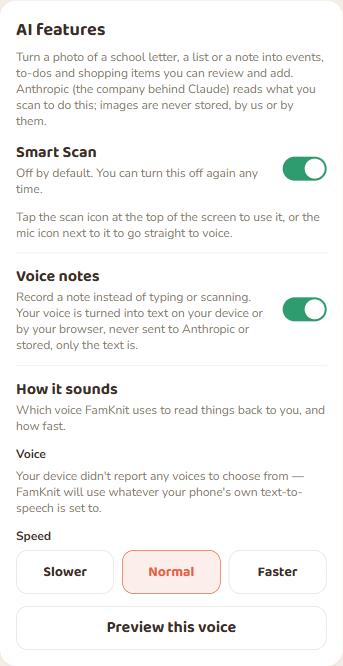
If AI features have been turned on for you, you'll see a sparkle scan icon at the top of every screen, and a microphone icon next to it once voice notes are on too. Tap the sparkle for Smart Scan, or the microphone to go straight into speaking. If you only see the sparkle, voice notes just aren't switched on for you yet.

Scanning a letter, list or note
Tap the scan icon, and the first card is for anything with real content to read: a school letter, a shopping list scrawled on paper, a note someone left you.
| Where | What you'll see |
|---|---|
| The FamKnit phone app | Three buttons: Take a photo (opens your camera), Choose from gallery (your phone's own photo picker), and Choose a file (any file app, for a photo already saved or a PDF). |
| A web browser | One button, Choose a photo or PDF, since a browser has no camera shortcut of its own to offer. |
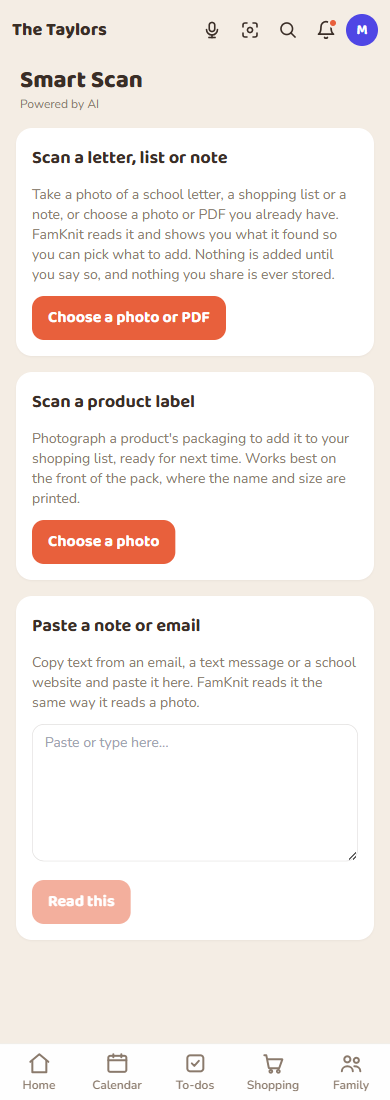
A PDF works the same way as a photo. Either one, FamKnit reads it the same way.
Sharing a photo or PDF straight into FamKnit
On Android, you don't have to open FamKnit first. From your Gallery, Files, Gmail, Drive, or anywhere else with a Share button, choose FamKnit and it opens straight to the review screen with that photo or PDF already read.
The review screen
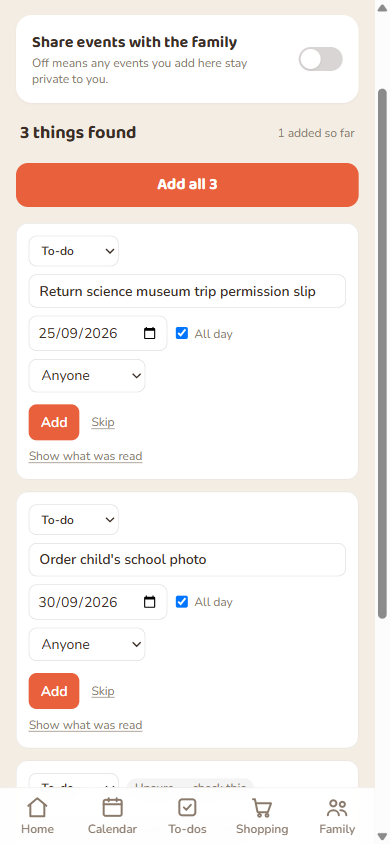
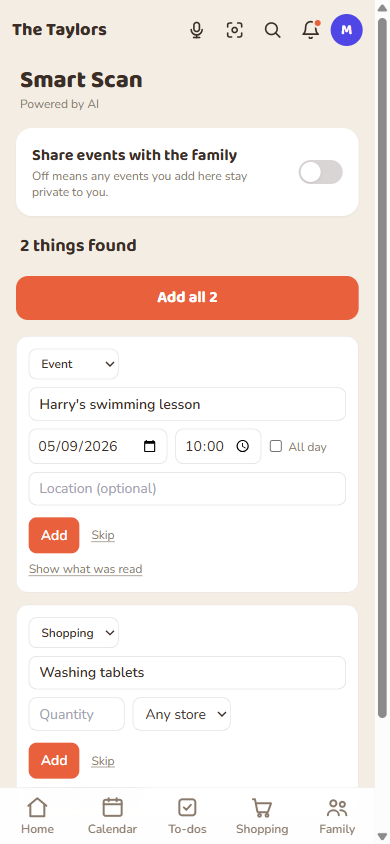
Every capture mode, photo, PDF, pasted text or voice, lands here. Each thing found gets its own card: a type (Event, To-do or Shopping), the details FamKnit read off it, and Add or Skip buttons. Nothing is saved until you tap Add, either one at a time or all at once.
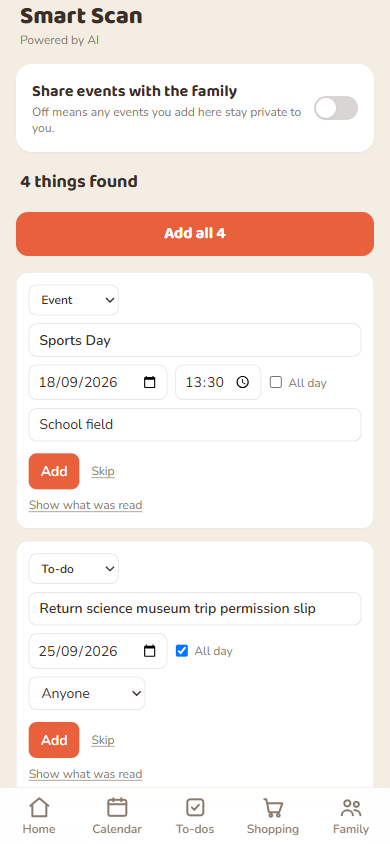
Everything is editable first. Get the type, the date, who it's assigned to, or the title wrong and just fix it before tapping Add. Show what was read on any card reveals the exact bit of text or speech FamKnit based that card on, useful when something looks off and you want to see why.
A card marked Unsure — check this means FamKnit couldn't tell something for certain, most often a missing date, and needs you to fill the gap in before it can be added.
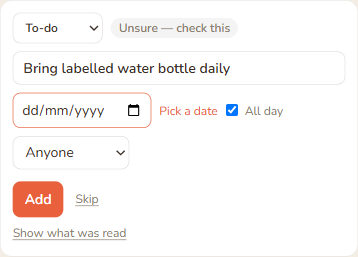
Adding things one at a time, or with Add all, works while you still have others to review. It skips anything genuinely incomplete (like the water bottle reminder above) rather than guessing.
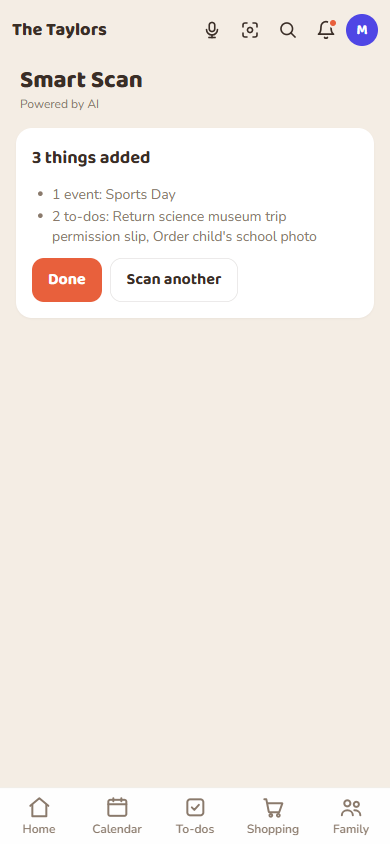
Once everything is added or skipped, you get a short summary of what actually went onto your calendar and lists, with the option to scan something else straight away.
Scanning a product label
A separate card, one level down from the letter/list scanner, for photographing a product's packaging, the front of a cereal box or a bottle, to add it to your shopping list ready for next time. It reads the product name and size, so it works best with the front of the pack in shot.
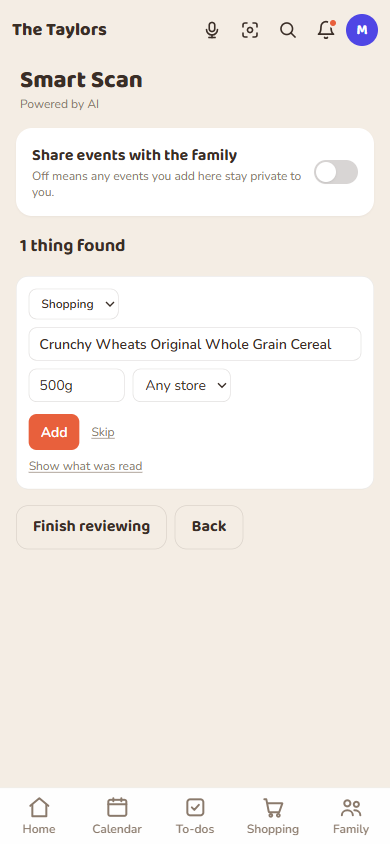
This one always comes back as a shopping item, nothing else, which is what makes it quicker than the general letter/list scanner for this one job.
Pasting a note or email
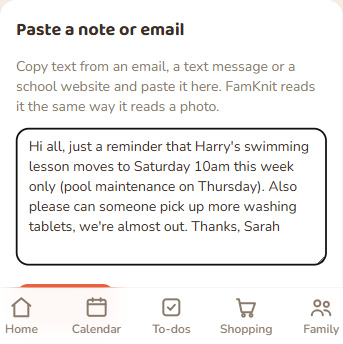
No photo needed at all: copy text from an email, a text message or a school website and paste it into the third card. FamKnit reads pasted text exactly the way it reads a photo.
Voice notes
Once Voice notes is switched on, tap the microphone icon and just say what you want: "Add swimming practice Thursday at 5, and put washing tablets on the shopping list." FamKnit listens, turns what you said into text on your own device or browser, and reads it the same way it reads a photo.
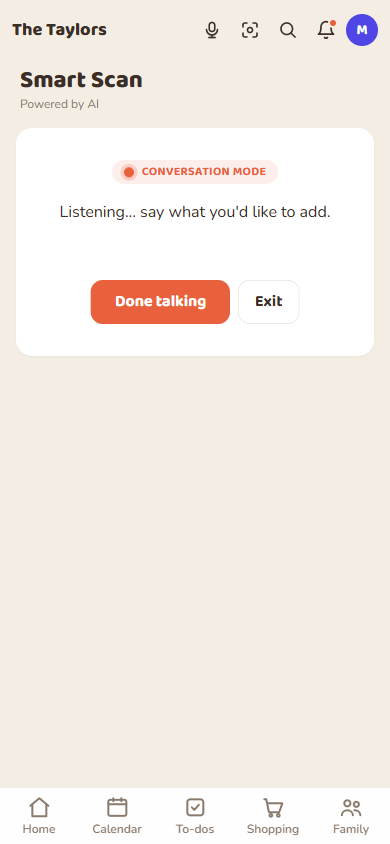
If something you said is unclear, FamKnit may ask a quick follow-up question, either typed or spoken back to you, before landing on the same review screen every other capture mode uses. Nothing is added purely by voice without you confirming it first.
Your family's AI allowance
Every scan, paste and voice note draws on a shared monthly allowance for your whole family, not a per-person one. Once it's used up for the month, Smart Scan says so rather than failing silently, and you can still add everything yourself the normal way in the meantime.
- Allowance used up: "Your family has used its AI allowance for this month. You can still add events, to-dos and shopping items yourself."
- Too many scans at once: "That's a lot of scans at once. Wait a bit and try again."
The Smart Scan icon stays visible either way. It never disappears just because the month's allowance is spent.