 FamKnit
Your family
Admins and members
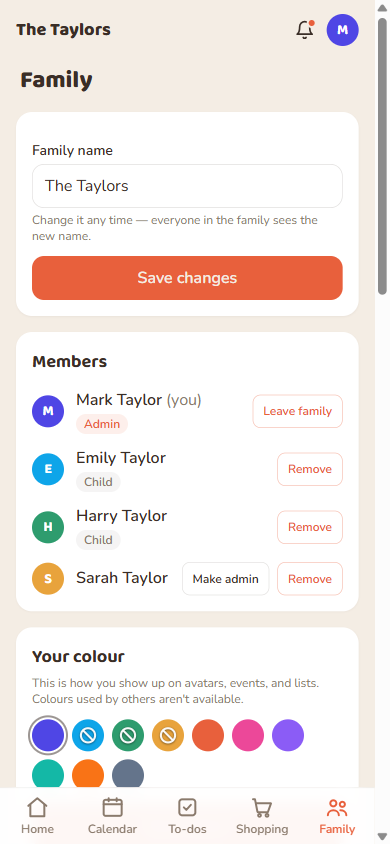
The person who creates the family becomes its first admin automatically. After that:
| Can they… | Admin | Member |
|---|---|---|
| Add events, to-dos, and shopping items | ✓ | ✓ |
| Manage their own profile, colour, and preferences | ✓ | ✓ |
| Leave the family | ✓ (see below) | ✓ |
| Rename the family | ✓ | – |
| Rotate the invite code | ✓ | – |
| Add a child | ✓ | – |
| Give a child their own login, or make a teen an adult | ✓ | – |
| Remove a member | ✓ | – |
| Promote/demote other members | ✓ | – |
| Delete the whole family | ✓ | – |
Adding a child
Children get a name and a colour but no login of their own: no email, no password, nothing to sign in with. You can tag them on events and to-dos, and admins can control which adults get reminded about their events (see below). When a child gets a phone, an admin can give them their own login (see below) and they become a teen. Anyone else joins as an adult, using the invite code or an email invite.
Teens
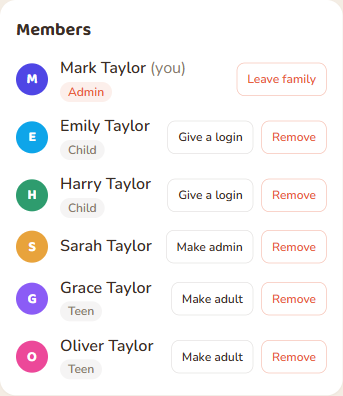
A teen is a child who has their own login. From the child's row, an admin taps “Give a login” and enters the email they will sign in with. The teen keeps everything already tagged to them, and can then add their own events, to-dos and shopping items and get their own reminders. They cannot manage the family or become an admin. FamKnit does not store birthdays, so giving a login asks you to confirm the child is 13 or over and that you are their parent or legal guardian, or have their permission. That is your decision as an admin. Do not give a login to a child under 13.
A teen can mark things private, which hides them from the rest of the family. Their responsible adults can still see those items, and are reminded of the teen's events, and the teen is told this. When they are ready, an admin taps “Make adult” on their row. Nothing changes on its own.
The full list of what each kind of person can do is in Who can do what.
Getting another adult into the family
Two ways, both admin-only to set up:
| Method | How it works |
|---|---|
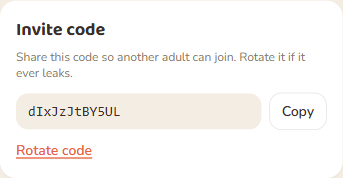
| Invite code | A short code shown on the Family tab. Share it however you like (text, verbally); they enter it themselves when signing up or from onboarding. |
| Invite by email | Enter their email under “Invite an adult by email” and FamKnit sends them a personal link to join directly. Only works for someone not already in the family. |
Who gets reminded about a child's or teen's events
By default, every adult in the family is reminded about a child's or teen's events and warned if something clashes. Admins can narrow this per child or teen from the “Responsible adults” section, useful if, say, only one parent handles a particular activity. For a teen, these are also the adults who can see the teen's private items. At least one adult always stays selected, and leaving everyone selected is the same as the default (a later-joining adult is automatically included too).
Expire prep to-dos
| Setting | What happens to an unfinished prep to-do once its event has passed |
|---|---|
| Off (default) | It stays visible and counts as overdue until someone completes it. |
| On | It's hidden once the event has passed, not marked done, just cleared off your list. |
This is a family-wide setting any admin can change, affecting prep to-dos linked to events for everyone.
Removing someone from the family
An admin can remove a member from their entry on the Members list. In short:
- Their private to-dos and private events go with them.
- Shared events and lists they created stay, reassigned to the admin who removed them.
- They keep their FamKnit login. They just land back on the “join or create a family” screen.
If you signed in a while ago, FamKnit asks you to confirm it's you before this goes through. The same applies to leaving and to deleting the family below. See Your account & data for how that works.
Leaving a family yourself
You can leave any time from the Family tab. It works the same way as being removed, with one extra rule: if you're the only admin and other adults remain, you'll need to promote someone else to admin first. If you're the last adult in the family, leaving deletes the whole family (any children or teens on it have nowhere left to be, though their logins stay, and any teens are emailed that it closed and are not signed out). If you want the family to continue, make a teen an adult first. The confirmation names any teens who would lose access.
Security activity
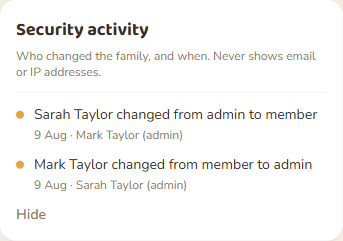
Admins onlyA record of who changed the family, and when: renaming it, rotating the invite code, someone joining, a child being added, roles changing, a member being removed or leaving, and the family being deleted. It's collapsed by default, hidden behind a “View” button, since most admins will rarely need it.
It never shows email addresses or IP addresses, on any screen, to anyone. If FamKnit ever needs to look into a security question, that detail is kept, but not surfaced here (see Your account & data for how long).
Deleting the whole family
Admins onlyThis permanently destroys every event, list, and to-do in the family. Nobody's FamKnit login is affected. Everyone just ends up without a family, same as after being removed.
| Family has… | What happens when you confirm |
|---|---|
| Only one admin | Deletion happens immediately, no waiting. |
| More than one admin | A request is created. Every OTHER admin must approve it. You'll see a banner showing who's approved so far, and they get an actionable notification with Approve/Reject buttons right in the bell dropdown. |
One rejection cancels the request outright. The person who started it has to begin again if they still want to.